Menu bar icons hidden behind the MacBook notch: every fix for macOS 27
On a MacBook with a notch, menu bar icons that don't fit beside the camera disappear while their apps keep running. macOS 27 adds a button that shows them, but its new menu bar also broke most of the apps people used to fix this. Here's what changed and every fix that works as of October 2026.
Why do menu bar icons disappear behind the notch?
Menu bar icons disappear on a MacBook with a notch because there isn’t room for them between Control Center and the camera. macOS lines them up from the right edge of the screen towards the middle, and the camera housing sits in the middle. Icons that would end up behind it aren’t drawn. The app is still running; you just can’t see or click its icon.
These icons are what Apple calls status menus: Wi-Fi, battery, Spotlight, and the small icons that apps such as clipboard managers, VPNs and system monitors add. Every app you install that lives in the menu bar takes a bit more of the room on the right of the notch. On the left, the menus of the app you’re using (File, Edit, View…) take up space too, and an app with many menus can run into the camera as well.
It only happens on Macs with a notch: the 14-inch and 16-inch MacBook Pro from 2021 on, and MacBook Air models from the M2 on. Our post on the Dynamic Island for Mac lists which Macs have one.
Until macOS 27, nothing told you an icon was missing. In May 2026, 9to5Mac’s Ben Lovejoy called it one of the “absurd UI oversights to remain unfixed through countless macOS generations.”
What changed in macOS 27
macOS 27 Golden Gate, released on September 14, 2026, is the first version of macOS with a built-in answer. Apple’s notes for the release say:
“The macOS menu bar dynamically adapts when there isn’t enough space to show every item. Menu bar items are hidden and replaced with a compact overflow indicator that surfaces the hidden items when pressed.”
In practice, a double arrow appears at the edge of the icon area when your icons don’t fit. Click it and the hidden icons appear; click it again and they go away. Apple doesn’t mention the notch, but a notched MacBook is where you’ll see the arrow most, because the camera takes the middle of the bar.
It comes with two catches:
- You can’t choose which icons hide. macOS decides by width. Reordering icons is the only control you have.
- Most menu bar managers broke. According to Badgeify, which makes a menu bar app, macOS 27 draws the whole menu bar as a single window, where earlier versions used one window per icon. Bartender, Ice, Hidden Bar and others hid icons by moving those windows around, so the macOS 27 betas broke all of them. Some have updated since; the table below shows where each stands.
Built-in fixes, quickest first
You can fix most cases without installing anything. Try these in order:
- Click the overflow arrow (macOS 27). If an icon is missing, it’s probably behind the arrow at the edge of the icon area.
- Remove icons you don’t use. Apple’s instructions: “To quickly remove a status menu, press and hold the Command key while you drag the icon out of the menu bar.” Some icons, like the clock and Control Center, stay.
- Move the icons you need away from the notch. Hold Command and drag an icon to rearrange it. Icons nearest the camera are the first to run out of room, so keep the ones you check often towards the right edge.
- Turn off Apple’s own icons. Choose Apple menu → System Settings, then click Menu Bar in the sidebar (macOS Tahoe 26 and later). Wi-Fi, Bluetooth, Sound, Focus, Spotlight, Siri and others each have a switch, and they stay available in Control Center. On macOS Sequoia and earlier, these switches are in System Settings → Control Center.
- Turn off other apps’ icons without quitting them. In the same Menu Bar settings, the Allow in the Menu Bar section lists apps that add an icon. Switch one off and the app keeps running without its icon.
- If an app’s menus go behind the notch, use Apple’s fix for older apps: quit the app, select it in the Applications folder, choose File → Get Info, and select Scale to fit below built-in camera. Apple notes that while that app is open, other apps also appear below the camera, and that the checkbox stops appearing once the app’s developer has updated it.
- Give up the space around the notch. In System Settings → Displays, show all available resolutions and pick one with the same width as your current one and a slightly shorter height. The menu bar then sits below the camera, with a black strip around it. You lose a little screen, but no icon can hide behind the camera again.
Fit more icons with a Terminal setting
macOS has two hidden settings for the gap between menu bar icons. Making the gap smaller fits more icons beside the notch. 9to5Mac halved the default spacing of 16 with these two commands in Terminal:
defaults -currentHost write -globalDomain NSStatusItemSpacing -int 8
defaults -currentHost write -globalDomain NSStatusItemSelectionPadding -int 8
Log out and back in to see the change. To go back to the default spacing, run these two commands and log out again:
defaults -currentHost delete -globalDomain NSStatusItemSpacing
defaults -currentHost delete -globalDomain NSStatusItemSelectionPadding
Apple doesn’t document these settings. A January 2026 report shows them working on macOS Tahoe 26.2, but we haven’t confirmed them on macOS 27, and Apple can remove them in any update. Deleting the settings returns you to normal either way.
Menu bar managers that work on macOS 27
A menu bar manager lets you choose which icons stay visible and keeps the rest behind a click, which macOS 27’s own arrow doesn’t do. Here’s where the popular ones stand. We checked each app’s own website or release page on October 11, 2026:
| App | Price | macOS 27 status |
|---|---|---|
| Bartender 7 | Paid, one-time, with a 4-week trial | Its site says Bartender 7 “is built for macOS 27”; its release page still lists beta builds |
| Thaw | Free, open source | Pre-release builds for macOS 27 (version 3.0 beta) |
| Hidden Bar | Free, open source | Version 1.11.1 on GitHub (September 18) says “Hiding works on macOS 27 in this download” |
| Ice | Free, open source | No macOS 27 version yet; the latest release is a macOS Tahoe beta |
Thaw is a fork of Ice. If you used Ice before macOS 27, it’s the closest replacement. Hidden Bar’s macOS 27 support is in the download from GitHub, according to its release notes.
Keep one thing in mind: Apple offers no official way for an app to hide other apps’ icons. As Hidden Bar’s developers put it, every working hider on macOS 27 relies on an unofficial method that a future update could break.
Or put your menu bar apps in the notch
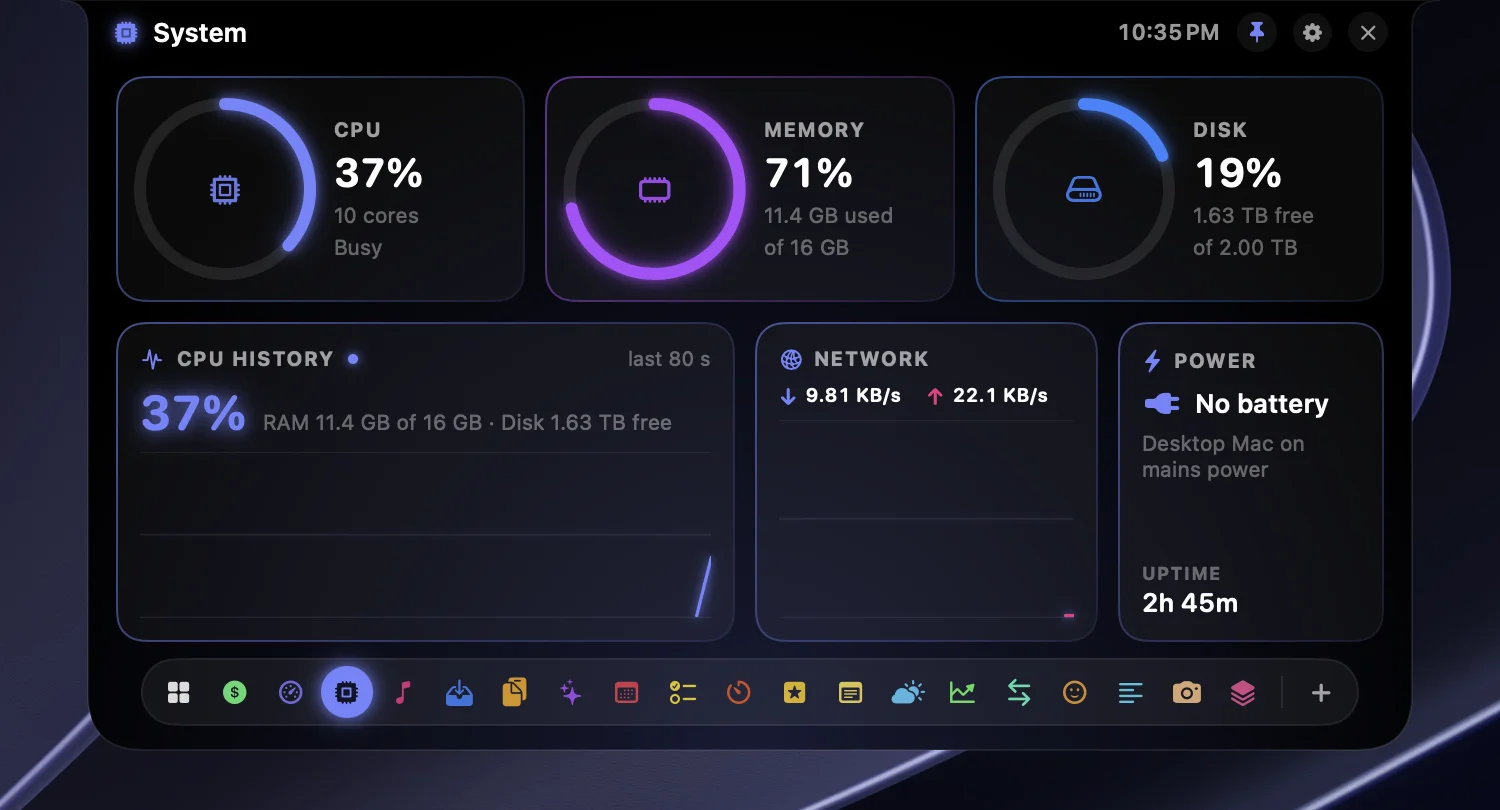
A different way to fix a crowded menu bar is to need fewer icons. Every utility that lives in the menu bar costs one icon, and a notch app can hold several of them in the notch itself, a spot the menu bar can’t use anyway. You hover over the notch, or press a shortcut, and a panel opens with the tools inside.
We make one, NotchStack, so weigh this section with that in mind. These are the kinds of menu bar utilities its tools can stand in for:
- System monitors: CPU, memory, disk, network and battery.
- Clipboard managers: everything you copied, searchable.
- Timers and focus sessions.
- Weather and calendar for the day ahead.
- Music controls for Music and Spotify.
- AI usage meters: your Claude Code and Codex limits and when they reset.
- Revenue: today’s sales from Stripe or Dodo Payments.
Two honest caveats if your menu bar is already full:
- NotchStack adds one icon of its own. You can switch it off under Allow in the Menu Bar in System Settings. Hovering over the notch and the ⌃⌥⌘Space shortcut still open it.
- By default, the closed notch has two small “ears”. Your coding agent sits on the left and today’s revenue on the right, each about 78 points wide. They sit on top of the menu bar beside the camera, so on a packed bar they can cover icons there. Choose Settings → Notch → Beside the closed notch → Nothing and the closed notch stays the size of the camera.
A notch app isn’t a menu bar manager: it doesn’t hide other apps’ icons. It works best together with the built-in fixes above. You can try NotchStack free for 3 days; compare it with other options in our guide to the best Mac notch apps.
Which fix should you use?
- One or two icons missing: click the overflow arrow on macOS 27, remove what you don’t use with Command-drag, and turn off Apple icons you can reach from Control Center.
- Many menu bar apps: turn off the ones you rarely click in Allow in the Menu Bar, or use a menu bar manager that supports macOS 27.
- Several small utilities you check all day: move them into a notch app and remove their icons.
- An app’s own menus run behind the camera: turn on Scale to fit below built-in camera for that app.
- You’d rather not have the notch at all: choose the shorter display resolution.
Common questions
Why did a menu bar icon disappear on my MacBook?
Most likely the menu bar ran out of room beside the notch. macOS doesn’t draw icons that would land behind the camera. On macOS 27, click the double arrow at the edge of the icon area to see them. On earlier versions, remove or turn off a few other icons until it comes back.
Is the app still running when its icon is hidden?
Yes. Hiding the icon doesn’t quit the app. You can check in Activity Monitor, or open the app again from the Applications folder, which in many menu bar apps opens their settings.
Can I choose which icons macOS 27 hides?
No. macOS 27 hides whatever doesn’t fit. You can only change the order with Command-drag or remove icons. To pick exactly which icons stay visible, you need a menu bar manager.
Does Ice work on macOS 27?
Not as of October 11, 2026. Ice’s latest release is a beta for macOS Tahoe 26. Thaw, a fork of Ice, has pre-release builds for macOS 27.
Will the new MacBook Pro fix the notch?
Reports say Apple may launch OLED MacBook Pro models with a Dynamic Island around October 27, 2026. Apple hasn’t confirmed it, and a Dynamic Island would still sit in the middle of the menu bar. Our Dynamic Island for Mac post covers what’s known.
Sources
- Apple Support: What’s new for enterprise in macOS Golden Gate 27
- Apple Support: What’s in the menu bar on Mac?
- Apple Support: Change Menu Bar settings on Mac
- Apple Support: How to adjust an app’s settings to appear below the camera area on your MacBook Air or MacBook Pro
- Apple Newsroom: Major updates for Apple’s software platforms are now available (September 14, 2026)
- 9to5Mac: How to stop menu bar items being hidden behind the MacBook Pro notch (May 22, 2026)
- zhaoJian’s Tech Notes: Reduce the spacing between icons in the macOS menu bar (January 28, 2026)
- Badgeify: macOS 27 menu bar: new expand button, why Bartender and Ice broke (June 11, 2026)
- Brow: macOS 27 menu bar: what changed and how to hide icons again (August 25, 2026)
- Bartender: macbartender.com, Bartender support and Golden Gate releases
- Thaw: releases on GitHub
- Hidden Bar: releases on GitHub and Hide the MacBook notch: the fix for the macOS 27 menu bar (September 18, 2026)
- Ice: jordanbaird/Ice on GitHub and its releases
NotchStack’s settings, its menu bar icon and the size of the closed notch’s ears come from the app’s own code.